Browser extension · free
Your voice, right where you write.
Reply to comments and emails, and rewrite any text you select, in the style you trained on StyleMimic — without copying anything between tabs.
For desktop Chrome, Edge and Brave. Needs a free StyleMimic account.
What it does
Everything you write on the web, in your own voice
The extension uses the same saved styles and the same word balance as your StyleMimic account.
Reply to comments and messages
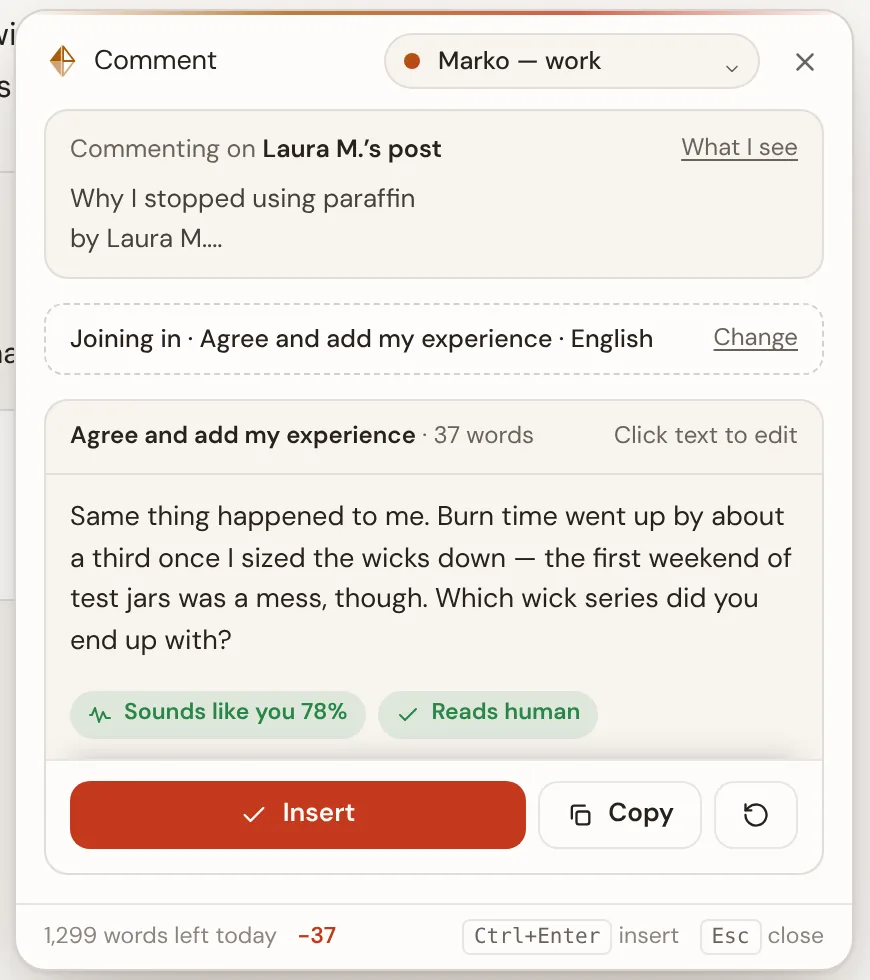
Reply appears under posts, comments and in email replies. It reads what you are answering, offers directions that fit, and writes the reply the way you would.
Rewrite anything you select
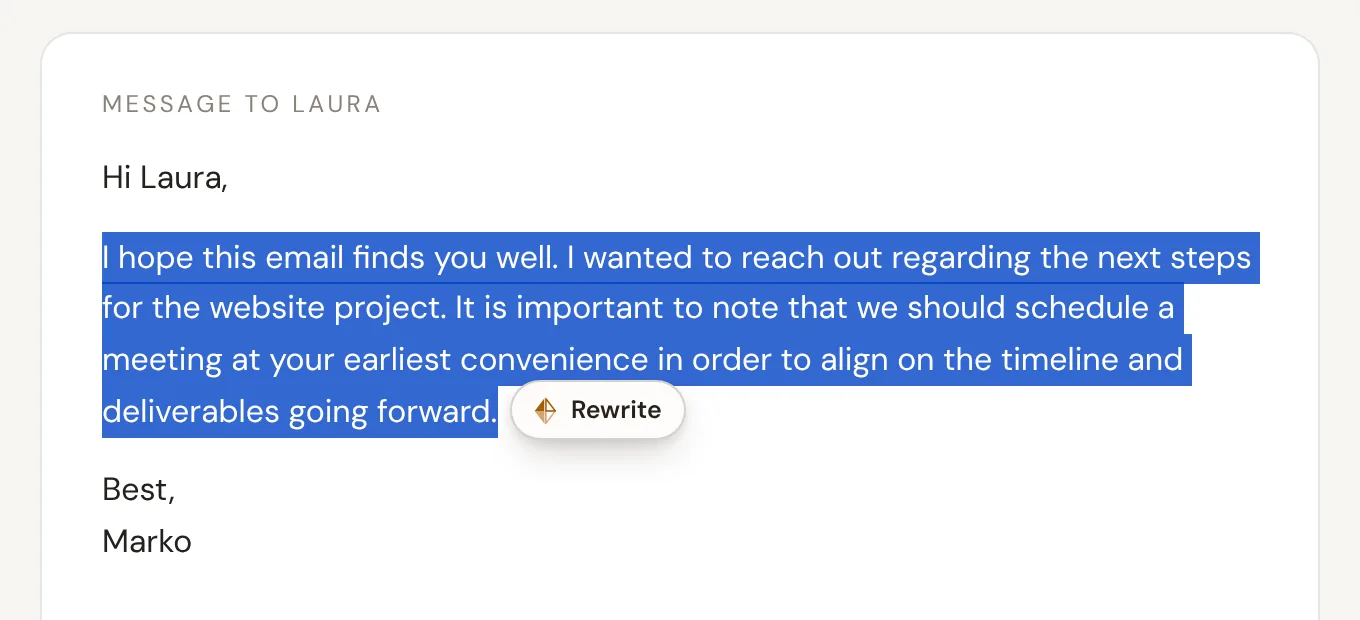
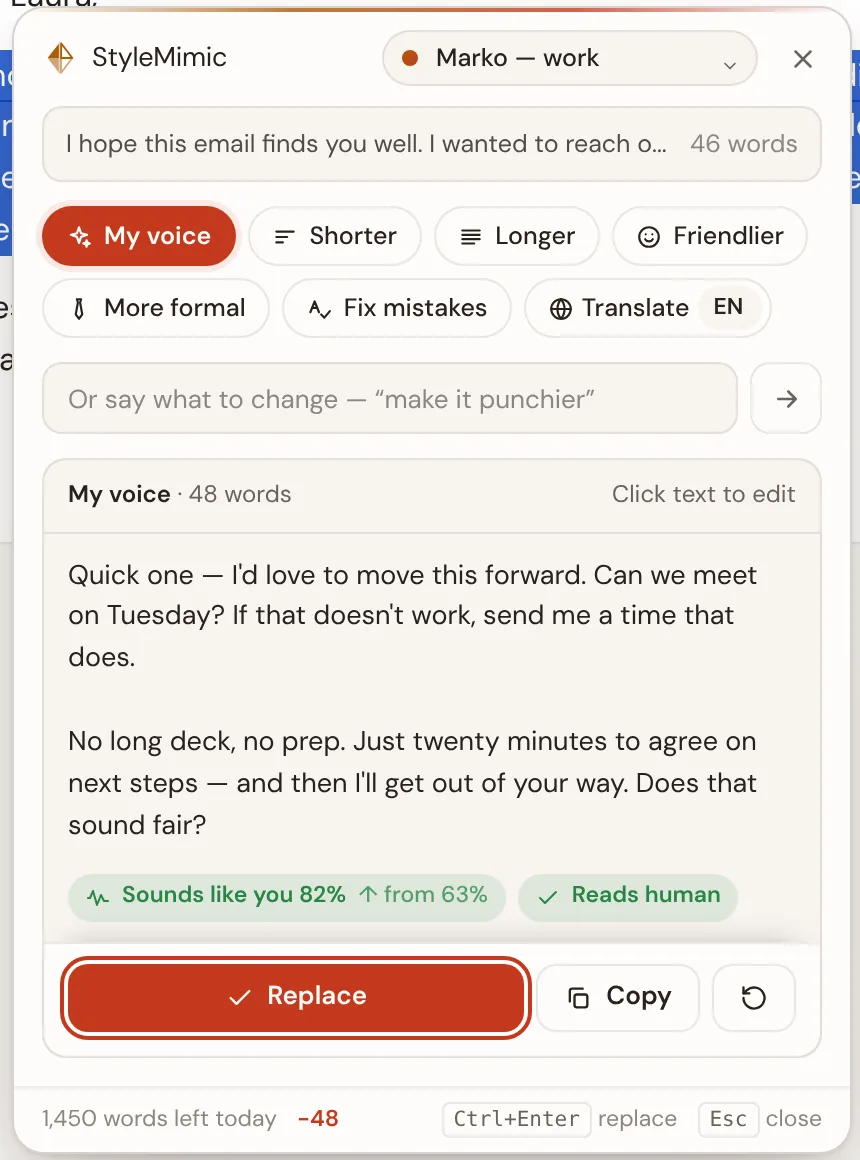
Select text in any box and rewrite it in your voice, or make it shorter, longer, friendlier, more formal, or fix mistakes only.
Answer in their language
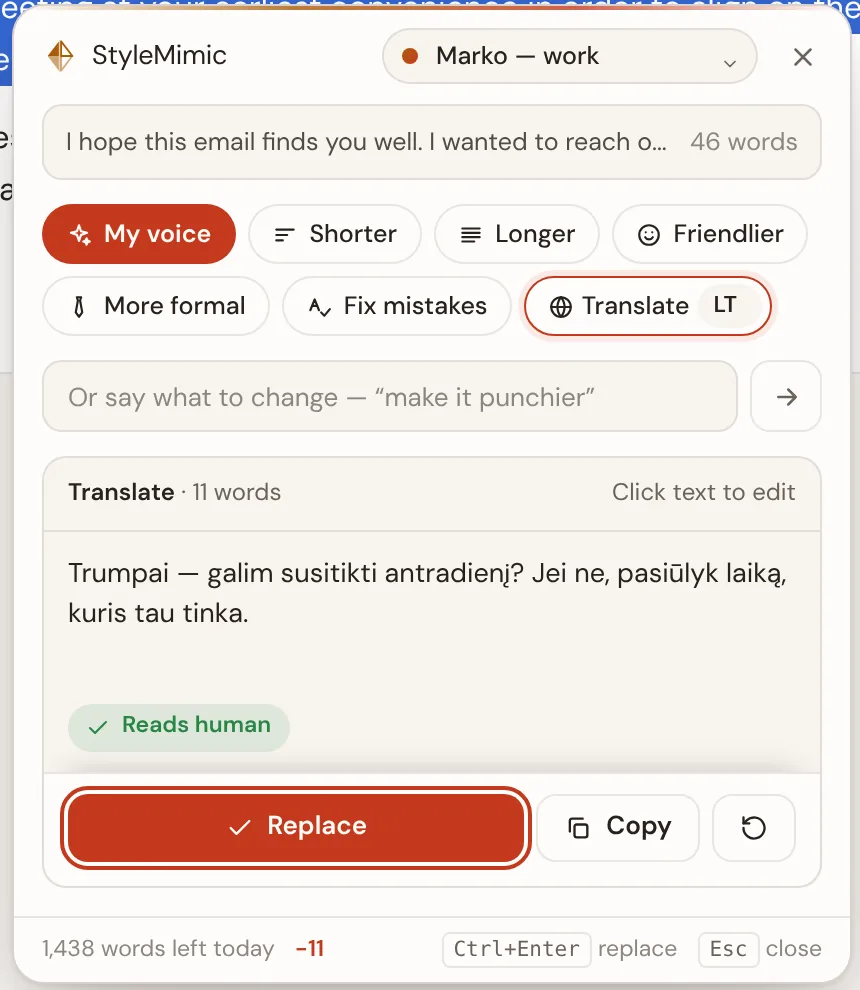
A message in another language is translated for you. Reply in theirs, and read your reply in yours before you insert it.
See how much it sounds like you
Every result shows a “Sounds like you” score measured against your own writing, and flags stock AI phrasing.
One voice per client or brand
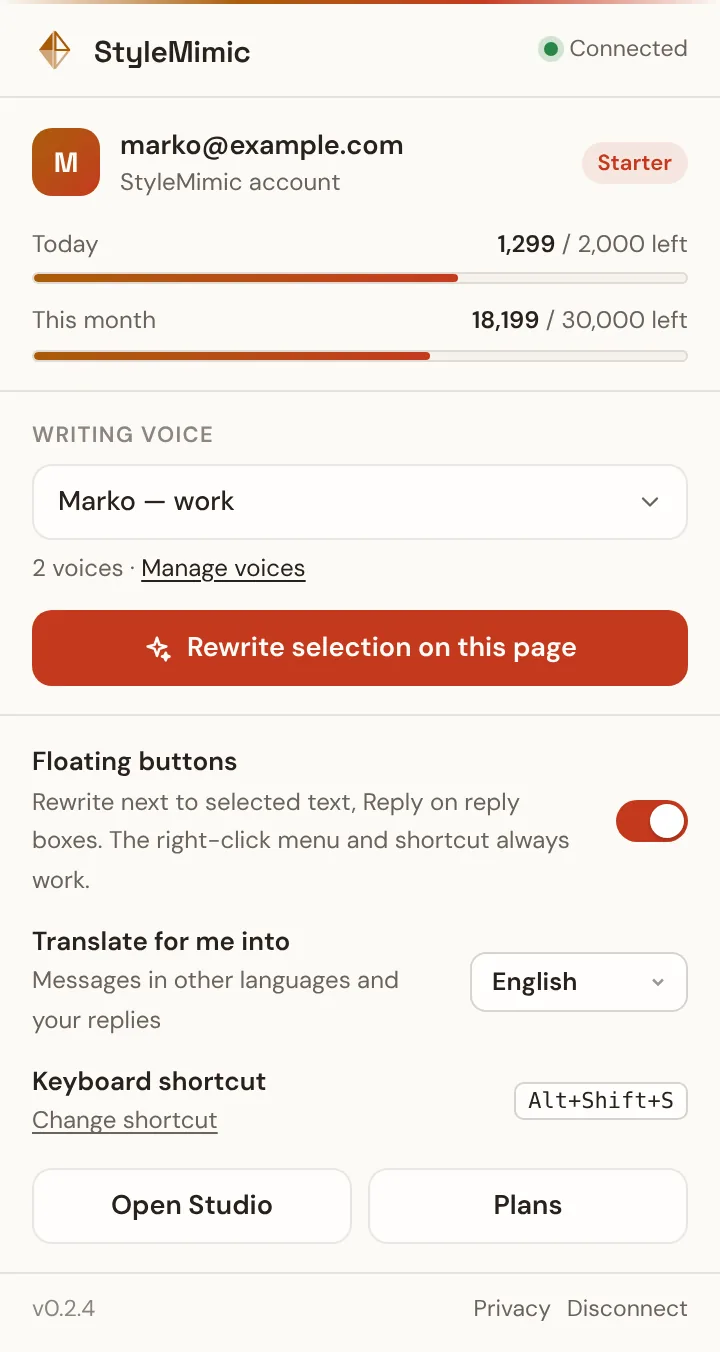
Switch between your saved styles from the panel — work, personal, or one for each client you write for.
Three ways to open it
The floating button, the keyboard shortcut Alt+Shift+S, or the right-click menu. All three work on almost any site.
Who it's for
Where it saves the most time
Creators and founders
Answer the comments under your own posts the same evening — in your voice, not a support-bot tone. Mark “I wrote the post” and it replies as the author.
Professionals on social media
Join other people's threads with a real point instead of “Great post!”. Pick “Agree and add my experience” or “Ask a question”, type three words, insert.
Small shops and service businesses
Answer customer emails and enquiries quickly with prices and terms in your usual tone — and in the customer's language if they wrote in another one.
Ghostwriters and agencies
Keep a style per client and switch with one click, right in the tool where you are drafting their posts or replies.
Set up in two minutes
Install and connect
- 1
Save a writing style first
If you haven't yet, open My Styles and paste a few things you have written. The extension writes with the styles saved there. - 2
Add the extension
Click Add to Chrome on the Chrome Web Store page and confirm. Then click the puzzle icon in the toolbar and pin StyleMimic so it is always one click away. - 3
Connect your account
A StyleMimic tab opens by itself. Sign in if asked and click Connect. The extension never sees your password; you can disconnect it at any time. - 4
Pick your voice
Click the StyleMimic icon in the toolbar and choose the style to write with. Your words for today and this month are shown there too. - Add to Chrome — free
Guide
How to use it
Two jobs: replying to something on the page, and rewriting text you already have.
Reply to a comment, post or email
- 1
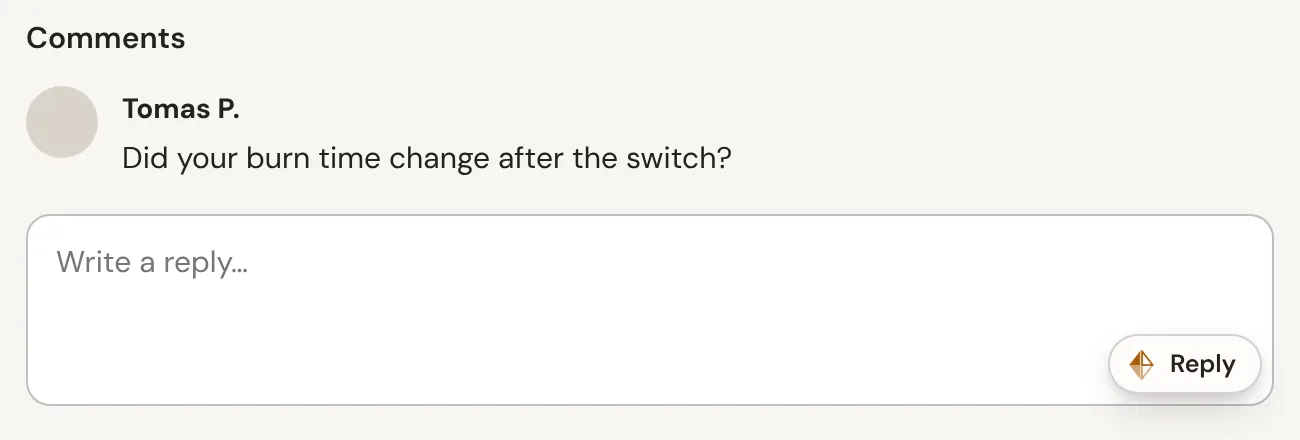
Click into the reply box
A Reply (or Comment) button appears in the corner of the box. Click it, or press Alt+Shift+S. To answer something without a box, select it and right-click → Reply to this in my voice. - 2
Check what it's answering
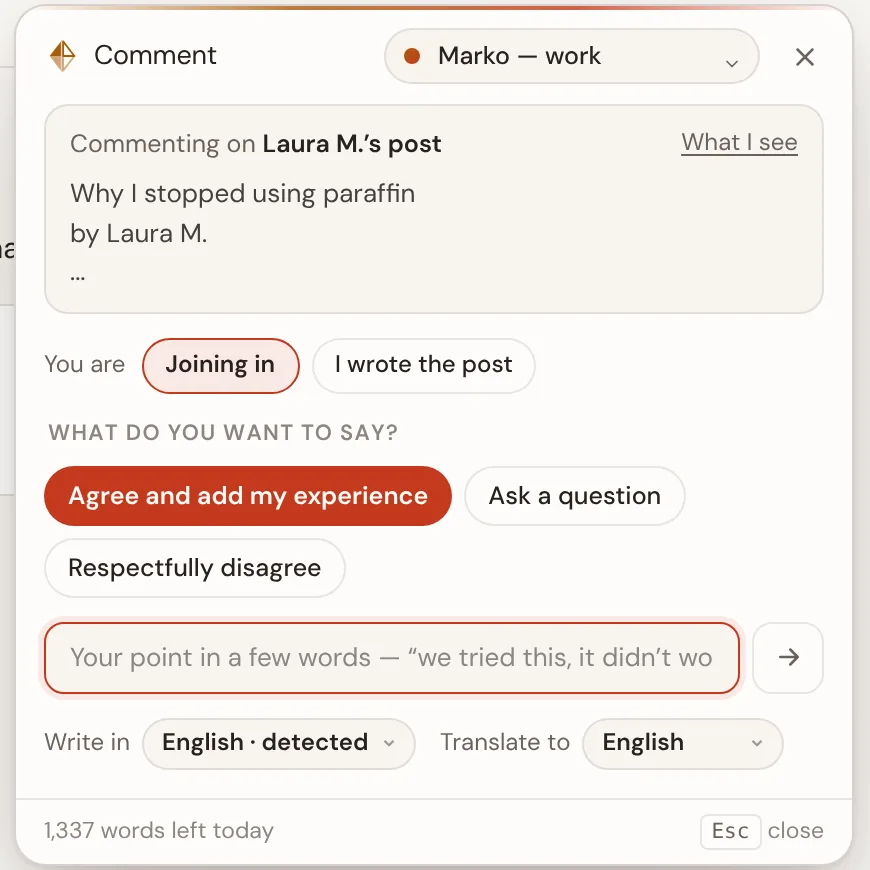
The panel shows who you are replying to. What I see opens the exact text it will read — you can trim it. A message in another language is translated for you here. - 3
Say who you are in the thread
On public posts choose Joining in or I wrote the post. As the author it thanks and answers; as a participant it never speaks for the author. - 4
Pick a direction and add your point
Choose a suggestion like Agree and add my experience or Ask a question, and type your point in a few words — “we tried this, it didn't work”. Facts come only from what you type. - 5
Insert, copy or try again
Read the reply, click it to edit, then Insert (Ctrl+Enter) or Copy. Not right? Regenerate, or use Change to pick another direction. You send or post it yourself.
Rewrite text you selected
- 1
Select the text
In an email, a post, a document or any text box. A Rewrite button appears next to the selection. You can also press Alt+Shift+S or right-click → Rewrite in my voice. - 2
Choose what to do
My voice rewrites it the way you write. Or pick Shorter, Longer, Friendlier, More formal, Fix mistakes (spelling and grammar only) or Translate. You can also type your own instruction, like “make it punchier”. - 3
Replace or copy
Replace (Ctrl+Enter) puts it back where the text was. Your editor's undo still works, so Ctrl+Z brings the original back.
Settings
- Floating buttons — switch them off for the site you're on; the shortcut and right-click menu keep working.
- Translate for me into — the language messages and your replies are shown in.
- Shortcut — change Alt+Shift+S from the toolbar window.
Words
- Replies and rewrites use words from the same balance as the website.
- Only the words written for you count — not the message you answer.
- Reading a message and translating it for you are free.
Privacy
- Nothing is read or sent until you click an action.
- Rewrite sends only your selection; Reply also sends the message you answer.
- Usage statistics never contain text. Privacy policy
Questions
- Which browsers does it work in?
- Desktop Chrome, and other browsers that install from the Chrome Web Store, such as Edge and Brave. Phones and tablets are not supported.
- Do I need an account?
- Yes: a free StyleMimic account with at least one saved writing style. The extension uses the same styles and the same word balance as the website.
- Does it post or send anything for me?
- Never. It only puts text into the box you are typing in, or copies it. You read it, change it if you like, and send or post it yourself.
- What does it cost?
- The extension is free. Replies and rewrites use words from your monthly allowance, like on the website. Reading a message, translating it for you and translating your reply back are free.
- The Reply button doesn't appear in a box. What now?
- Press Alt+Shift+S inside the box, or select the message and right-click → “Reply to this in my voice”. The shortcut and the menu work everywhere, even where the floating button is hidden.
- Can I turn the floating buttons off on some sites?
- Yes. Open the extension from the toolbar and switch “Floating buttons” off for the site you are on. The shortcut and the right-click menu keep working there.
- How do I disconnect it?
- Click Disconnect in the extension, or remove the browser under Account → Extensions on stylemimic.com. Access ends immediately.
Try it on the next comment you answer
Free to install. Uses your StyleMimic words.